Old photo restoration software fixes up those scanned pictures that have seen better days. Scratches, dust, tears, faded colors — it tackles all that stuff. The programs mix smart automatic fixes with hands-on tools. You end up with cleaner, sharper images ready for keeping forever or passing around the family.
What Does Old Photo Restoration Software Do
What old photo restoration software does. It repairs damaged pictures. Handles common problems automatically first—like bringing back faded colors, removing red-eye, and clearing minor scratches.
For tougher damage, such as tears or large stains, or severe fading, you move to manual tools. Clone stamp copies good areas to cover missing parts. Healing brush smooths out scratches and blemishes. You can adjust grain levels, reduce noise in the image, and even add realistic color to black-and-white photographs.
The whole point is to remove the accumulated dirt and wear from years gone by, without altering what the photo originally showed.
Top 6 Software for Restoring Old Photos
The right software blends automated fixes with the option to take over manually. Here are six of the leading applications. They cater to different users: some for speed and convenience, others for total control. Your choice depends on what you’re trying to do and how much you want to spend.
1. Renew Photo
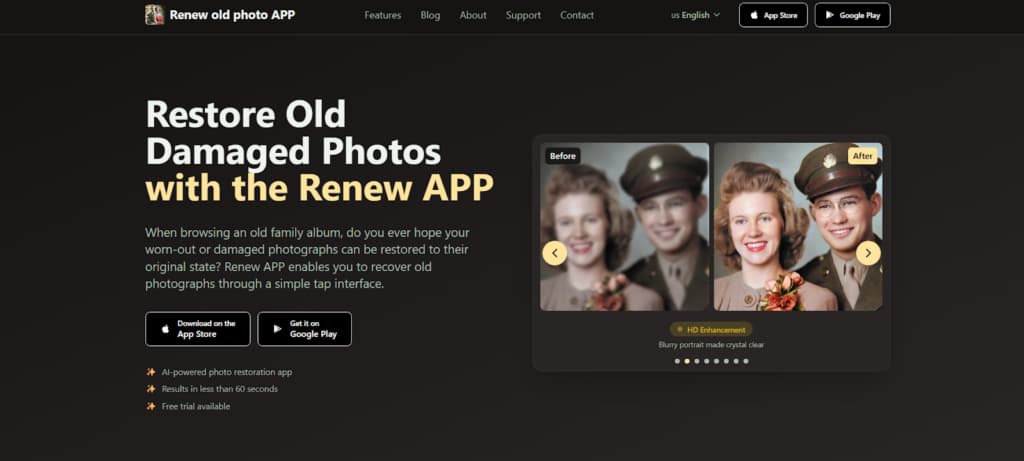
Renew Photo is a mobile app that uses AI to fix old photos on your phone or tablet. It restores damage, adds color, and improves the overall look. Keeps things simple and fast. No skills needed. Deals with tears, fading, scratches, and color loss. You get a finished image in under a minute.
How to Use Renew Photo:
- Get the App: Download Renew from the App Store or Google Play.
- Choose a Tool: Select your goal—restore, colorize, or fix scratches.
- Pick a Photo: Upload one from your gallery or take a new photo.
- Start AI: Tap to begin. The AI repairs damage in seconds.
- Save or Share: Review the results, tweak if needed, then save or share.
2. LetsEnhance

LetsEnhance is a browser-based platform. Its “Old Photo” model specifically fixes damage, not just enhances. A useful feature is “Authentic” mode, which preserves the original photo’s tone and texture. It’s ideal for fast, high-quality restorations done directly on the web.
How to Use LetsEnhance:
- Go to LetsEnhance and log in.
- Upload your old photo.
- Select the “Old Photo” model.
- Toggle “Authentic” mode ON for original colors, OFF for colorization.
- Click “Enhance,” preview, and download.
3. Picsart
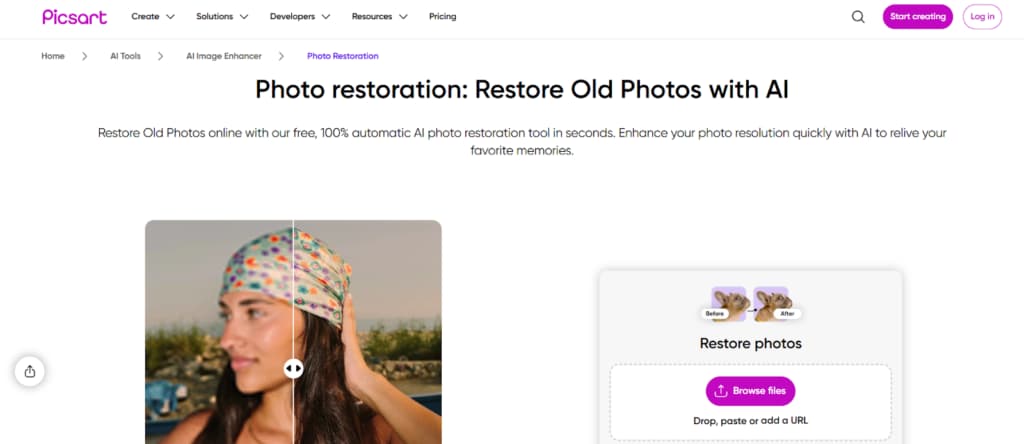
Picsart is a full creative suite with built-in AI tools. For photo restoration, it gives you two paths: the instant “Edit with AI” feature for quick fixes with a prompt, or a full manual toolkit for detailed repair. This makes it flexible for both fast one-click results and more careful, custom work. The interface is designed to be accessible for all skill levels.
How to Use Picsart:
- Open Picsart: Log in on the web or mobile app.
- Start AI Edit: Upload your photo and tap “Edit with AI”.
- Tell It What to Do: Type a prompt like “restore old photo” or “colorize portrait”.
- Pick and Save: Choose your favorite result from the options and download it.
4. MyHeritage
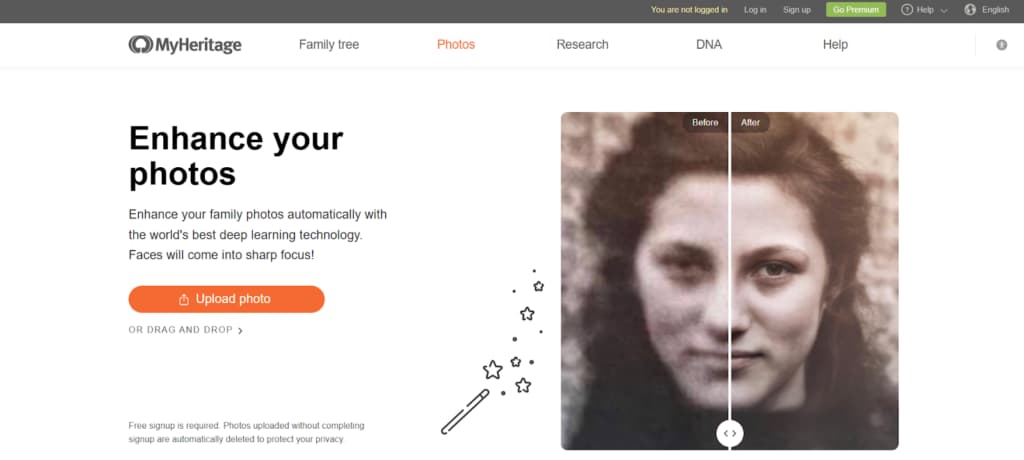
MyHeritage is mainly for genealogy, but it has AI photo tools. The restoration is fast and user-friendly, offering automatic enhancement and colorization. It lacks precision editing, but it’s effective for giving a quick boost to old monochrome or faded photos, often in under 30 seconds. Ideal for effortless improvements.
How to Use MyHeritage for Photo Restoration:
- Sign In: Log in to your MyHeritage account on the website or app.
- Find the Tool: Go to “Photos” in the menu and click “Enhance Photos.”
- Upload & Wait: Upload your old photo. It will be automatically enhanced in a few seconds.
- Add Color & Fix Flaws: Click the “Colorize” and “Repair” buttons for better color and to clean up minor damage.
- Download: Save the finished photo to your device. It’s also stored in your MyHeritage “My Photos” gallery.
5. HitPaw
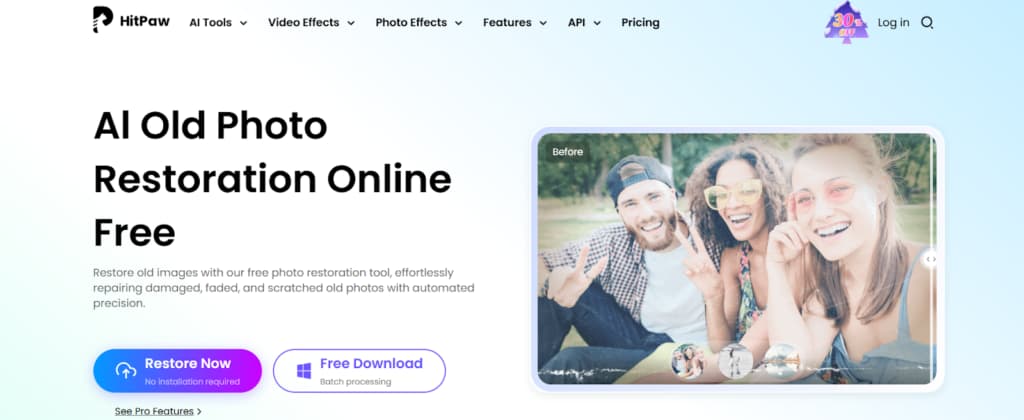
HitPaw Photo AI offers a strong “Image Restoration” model for detailed, color-accurate fixes. It’s a downloadable program for Windows or Mac with a straightforward interface. Additionally, it serves as a creative platform, giving you access to various AI models and creative templates, making it a capable tool for both restoration and other AI-powered editing.
How to Use HitPaw Photo AI for Photo Restoration:
- Download the App: Install HitPaw Photo AI on your Windows or Mac computer.
- Choose the Right Tool: Open the app and go to AI Models. Select “Image Restoration”.
- Add Your Photo: Drag and drop your old photo into the workspace.
- Start the Process: Click “Generate”. The AI will restore your photo in about a minute.
- Save Your Result: Preview the watermarked version. To get the clean, full-quality image, you’ll need to export it (which requires a license).
6. Adobe Photoshop CC
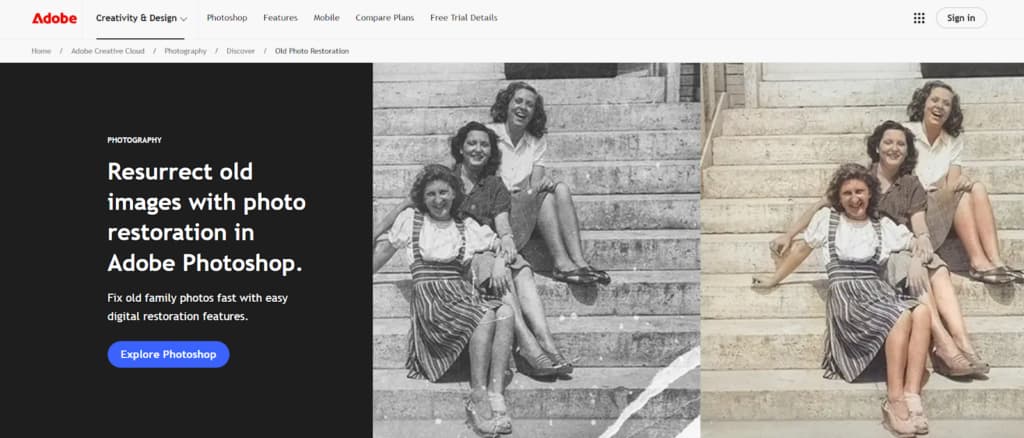
Photoshop leads in professional software. Offers total control over complex restorations. You reconstruct photos yourself, keep edits reversible. Includes new AI tools now, especially Neural Filters. They combine automation with the established manual retouching features.
How to Use Adobe Photoshop CC for Photo Restoration:
- Scan & Open: Scan and open your photo in Photoshop.
- Run AI Filter: Go to Filter > Neural Filters and use “Photo Restoration.”
- Manual Clean-Up: Use the Spot Healing Brush and Clone Stamp tools on a new layer.
- Fix Colors: Add Curves or Color Balance adjustment layers.
- Sharpen & Export: Apply light sharpening, save as a PSD, then export as JPEG or TIFF.
Conclusion
Old photo restoration software offers a practical method for preserving memories by repairing the damage that accumulates over time. The available tools address a range of user priorities, from speed and convenience to precision and budget control, ensuring a suitable option exists for different needs.
The functionality of this software enables the removal of long-term wear and deterioration, keeping significant moments visually clear and intact. This digital reversal of decay helps ensure that personal and family histories remain accessible for future use.
Two Additional Tools Worth Mentioning
The six tools above cover most common restoration workflows, but there are two more applications frequently used when standard fixes aren’t enough or when users want extra flexibility beyond traditional repair.
RetroFix
RetroFix is a mobile-focused photo restoration app built primarily for photos that show clear signs of age and damage. It handles scratches, fading, uneven lighting, and degraded facial details with an emphasis on reconstructing missing or weakened areas rather than simply sharpening what remains.
The interface stays simple, making it accessible to non-technical users, but the restoration quality tends to go deeper than many quick-fix apps. After restoration, users can also animate the photo, adding subtle motion once the image has been properly repaired.
RetroFix works well for users who want strong restoration results on a phone or tablet without stepping into professional desktop software. More details are available at https://retrofix.app.
Yore
Yore blends photo restoration with creative reconstruction. It can clean up and enhance old photos, but its defining feature is the ability to combine two separate images into one. This is useful for rebuilding missing sections of a photo or creating new images from historical references that were never photographed together.
In addition to restoration and photo combining, Yore supports photo animation. This makes it appealing for users who want to go beyond static repair and create more expressive, memory-driven results.
Yore is best suited for projects that mix restoration with creative AI features rather than strict technical correction. Learn more at https://yoreapp.website.
Overall perspective:
From quick mobile fixes to professional-grade desktop control, today’s photo restoration tools cover nearly every scenario. Apps like RetroFix and Yore help bridge the gap—offering deeper repair or creative reconstruction without the complexity of full professional software.